How QR Code Cafe Loyalty Works
Your customers scan, check in, and collect stamps on their own phone. You and your staff set the rules and confirm redemptions on the dashboard. You'll be up and running before your next coffee.
What Your Customer Does
Four steps, entirely on their own phone. No app, no account, no card to carry.
Scan the QR Code
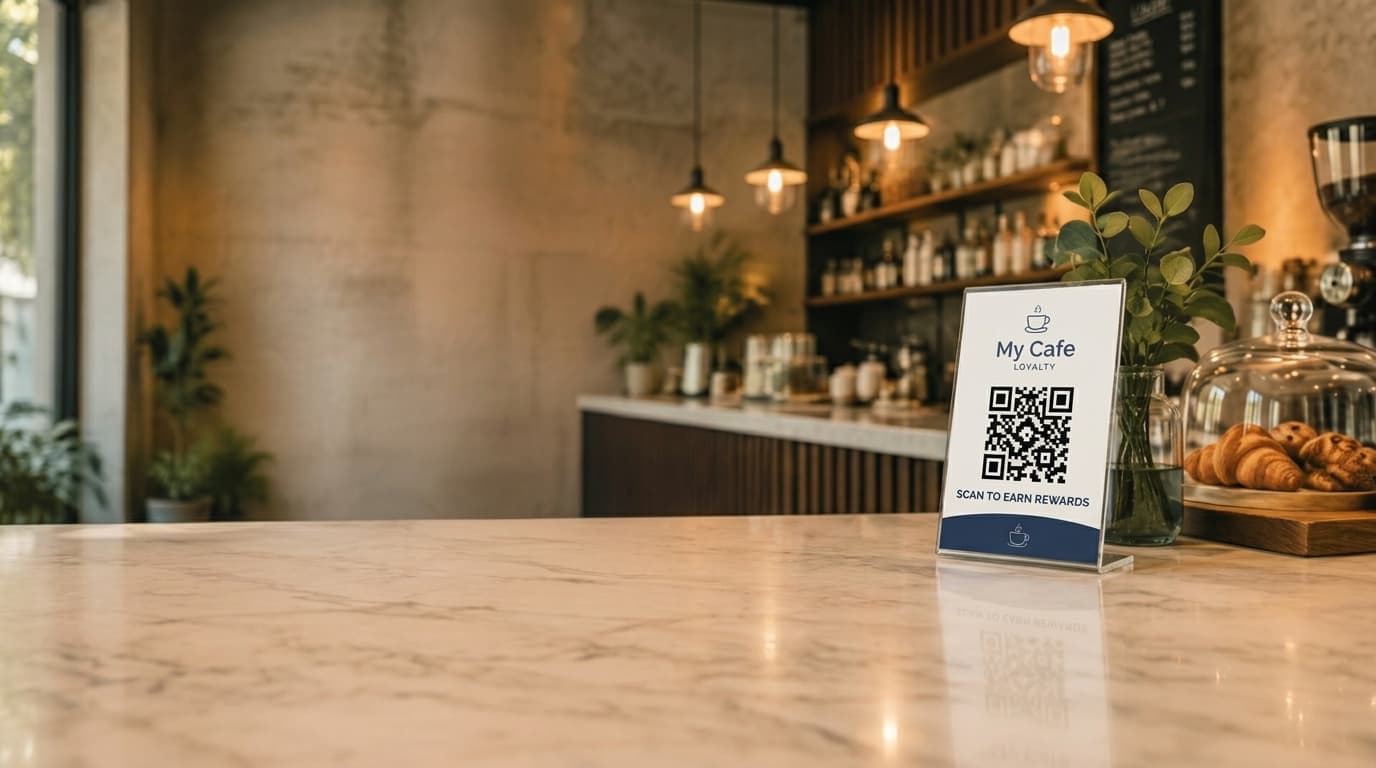
Customer points their phone camera at your QR code (printed poster or displayed on a tablet). Their browser opens your branded check-in page at mycafeloyalty.com.au/scan/your-cafe-name, no app to download.
- Works with any smartphone camera
- Opens your branded check-in page instantly
Check In
First visit takes about 30 seconds: name and mobile number. Every visit after that is recognised automatically, so it is just a tap. A 12-hour rate limit per customer stops anyone gaming the system.
- First time: name and mobile number (about 30 seconds)
- After that: recognised automatically, a few seconds
Progress Builds Automatically
Every check-in updates their progress towards a reward, no punch card to lose or forget. The default threshold is 10 stamps, but you can change that in settings.
- Progress shown on every check-in
- Reward threshold configurable (default: 10 stamps)
Reward Ready
When they hit the threshold, their check-in screen shows a reward. They let staff know and give their mobile number, staff confirm it on the dashboard (see below), no screenshots to redeem. SMS notifications go out automatically (Professional and Business plans), and Google review requests too, at the right moment (Business plan).
- Reward shown automatically on their screen
- No screenshots, no codes to remember
What You and Your Staff Do
Set it up once. After that, it is a few minutes a day, and none of it needs training.
Set Up Your Brand & Reward Rule
Start your 30-day free trial, nothing charged for 30 days, cancel anytime. Upload your logo, pick your brand colours, and set how many stamps earn a reward (default is 10). Download your QR poster as a PDF and print it, about 5 minutes start to finish.
- Logo, brand colours, reward threshold
- Choose verification mode (Open or Staff Confirmed)
Optionally Prompt Customers
The QR poster does the work on its own, but a quick mention from staff, “scan this to start earning rewards”, helps drive sign-ups. It is not required, and there is nothing to memorise.
- A light verbal mention is enough
- Optional, no scripts or training required
Confirm Redemptions on the Dashboard
When a customer says they are ready to redeem, look them up by name or mobile number on the dashboard and tap Confirm. No codes, no screenshots, no arguments at the counter.
- Search by name or mobile number
- One tap to confirm, marked redeemed immediately
Optionally Turn On Staff Confirmed Mode
Want full oversight instead? Switch on Staff Confirmed mode and every check-in lands in a pending queue, you approve or decline before it counts. Unreviewed visits auto-decline after 7 days, and you can switch modes any time.
- Real-time pending queue with a sidebar badge
- Optional, switch modes any time in settings
What Your Customers See
Scan, enter number, see progress, earn reward, that's the whole experience.
Your Branded Check-In Page
Your logo, your colours. Customers see their name, stamp count, and how close they are to a free coffee.
SMS Notifications (Professional and Business plans)
Welcome on first visit, reward notification when they earn it. Customers can opt out any time. It all goes out under your cafe's name.
Customer Portal
Customers can log in with a one-time SMS code to check their progress across any cafe using the platform, and manage their privacy preferences. Each cafe's customer data stays private to that cafe, one cafe can't see another cafe's customers.
Your Dashboard
Who's coming back, and who's ready to earn a reward, at a glance.
Analytics
Visits today vs yesterday, total customers, rewards claimed, your most loyal regulars, and peak hour trends. Updated in real time.
Pending Visits Queue
In Staff Confirmed mode, every check-in lands in a real-time queue for you to approve or decline. A sidebar badge tracks the count so nothing slips through.
Staff-Confirmed Redemptions
Look up the customer by name or number and tap Confirm to redeem their reward, right from the dashboard.
SMS Dashboard
See how many SMS credits you've used, check delivery rates, and manage your queue. Cancel a scheduled message before it sends if you need to.
Two Ways to Run Check-Ins
Switch modes any time from settings. No extra cost either way.
Open Check-Ins
Default mode
Visits count the moment a customer scans. Stats update instantly, SMS fires immediately, zero friction for customers, zero work for staff.
Good for busy cafes where speed matters, with the same anti-gaming protection.
Staff Confirmed
Maximum control
Every check-in lands in a pending queue. You approve or decline before it counts, and staff confirm rewards on the dashboard, not from a customer's screen. No arguments at the counter.
Good for cafes that want full oversight. Pending visits auto-decline after 7 days, and customer phone numbers are masked from staff view.
Questions
Do my customers need to download an app?
No. They scan your QR code with their phone camera and check in through the browser. No app, no account, no barrier. Just a phone number and a name.
Do my customers need to download an app?
No. They scan your QR code with their phone camera and check in through the browser. No app, no account, no barrier. Just a phone number and a name.
How do customers prove they earned a reward?
The system tracks it. When they hit the threshold, their check-in screen shows a reward. They let staff know and give their mobile number, staff look them up on the dashboard and tap Confirm. No screenshots to redeem, the reward is marked used in the system.
How do customers prove they earned a reward?
The system tracks it. When they hit the threshold, their check-in screen shows a reward. They let staff know and give their mobile number, staff look them up on the dashboard and tap Confirm. No screenshots to redeem, the reward is marked used in the system.
How does the system recognise a returning customer?
On the same phone at the same cafe, they're recognised automatically, no need to re-type their number. The browser keeps a short session (about a week) topped up by a 30-day cookie, so return visits are quick. There's no app, no account, and no device fingerprinting, recognition is anchored to the customer's phone number, not their device.
New phone, or cleared their browser? They just re-enter their mobile number. Because visit history and progress are tied to the phone number, everything picks up right where it left off.
How does the system recognise a returning customer?
On the same phone at the same cafe, they're recognised automatically, no need to re-type their number. The browser keeps a short session (about a week) topped up by a 30-day cookie, so return visits are quick. There's no app, no account, and no device fingerprinting, recognition is anchored to the customer's phone number, not their device.
New phone, or cleared their browser? They just re-enter their mobile number. Because visit history and progress are tied to the phone number, everything picks up right where it left off.
What if a customer tries to scan multiple times in one day?
There's a 12-hour rate limit per customer per cafe. Try again too soon and the scan is blocked with a message explaining when they can next check in.
What if a customer tries to scan multiple times in one day?
There's a 12-hour rate limit per customer per cafe. Try again too soon and the scan is blocked with a message explaining when they can next check in.
Can I control which check-ins count toward rewards?
Yes. Switch to Staff Confirmed mode and every check-in sits in a queue until you approve it. Only approved visits count toward rewards.
Can I control which check-ins count toward rewards?
Yes. Switch to Staff Confirmed mode and every check-in sits in a queue until you approve it. Only approved visits count toward rewards.
How long does setup take?
Five minutes. Upload your logo, pick your colours, set your reward threshold, download the QR poster. Print it at any print shop and you're live.
How long does setup take?
Five minutes. Upload your logo, pick your colours, set your reward threshold, download the QR poster. Print it at any print shop and you're live.
More questions? Visit our complete FAQ or contact our team.